
| Quick Summary |
|---|
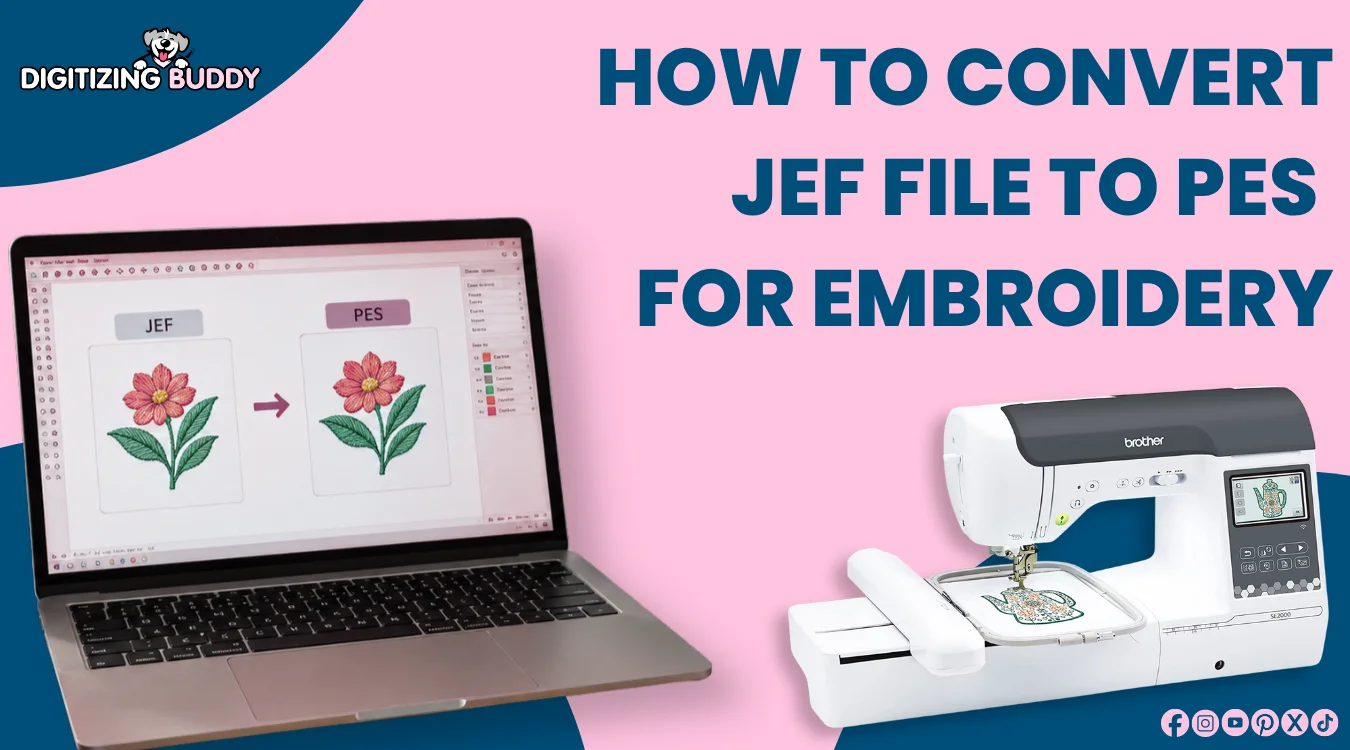
JEF to PES conversion lets you use a Janome or Elna embroidery design on many Brother and Baby Lock machines.
|
You may have a JEF design that worked on a Janome or Elna machine, but now you need to use it on a Brother or Baby Lock machine. This often happens after buying a new machine or receiving embroidery files from someone else.
However, changing JEF to PES is not as simple as renaming the file. The design must stay readable, fit your machine, and stitch correctly after conversion.
In this guide, we explain how to convert a JEF file to PES, what to check before stitching, and how to avoid common problems. If your design needs editing or repair, a reliable embroidery digitizing support can help prepare it for your machine.
- Can You Convert a JEF Embroidery File to PES?
- What Is a JEF Embroidery File?
- What Is a PES Embroidery File?
- Can You Convert JEF to PES Without Redigitizing?
- How to Convert a JEF File to PES?
- What Should You Check Before Stitching the PES File?
- Why Does the Converted PES File Not Open on a Brother Machine?
- Is an Online JEF to PES Converter Good Enough?
- Why Choose a Professional Digitizer for File Conversion?
Can You Convert a JEF Embroidery File to PES?
Yes. You can open a JEF design in compatible embroidery software and save or export it as a PES file. This lets many Brother and Baby Lock machines read the design.
However, changing the file format does not fix problems already inside the design. Poor density, bad stitch paths, or sizing issues can still affect the sew-out.
Check these details before stitching:
- Make sure the design fits the hoop.
- Check the stitch count and size.
- Review the color order.
- Look for very dense or overlapping stitches.
Finally, test the converted design on scrap fabric before using your final item.
What Is a JEF Embroidery File?
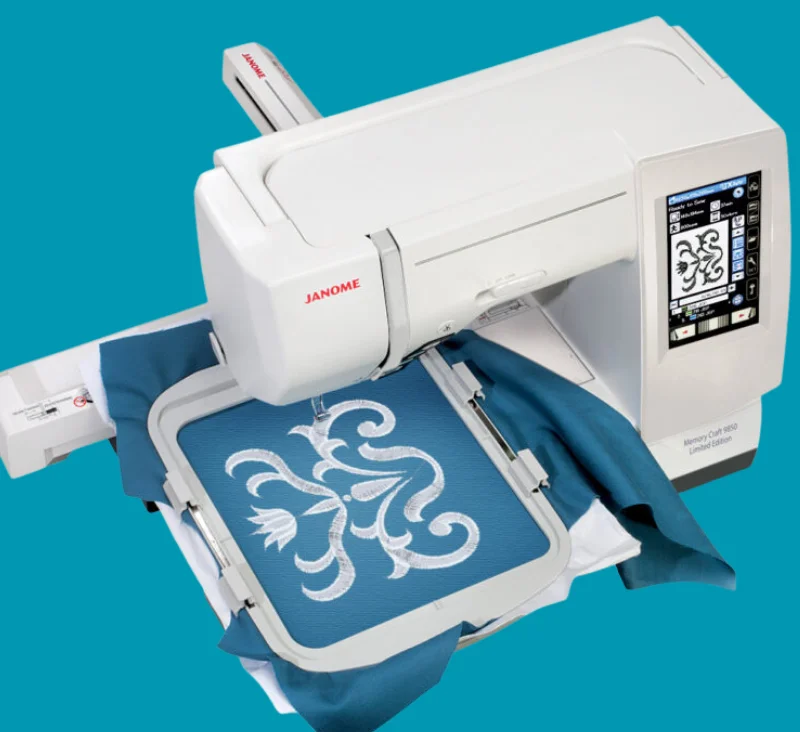
A JEF file is a stitch-based embroidery file used by Janome and Elna machines. It tells the machine how the design should sew, including stitch positions and hoop movement.
What Does a JEF File Store?
A JEF file can include:
- Stitch movement
- Color changes
- Design size
- Machine-readable stitch data
Because of this, the machine can follow the design path in the correct order.
How Is JEF Different From JPG, PNG, or PDF?
JPG, PNG, and PDF files show artwork, but they do not contain stitch instructions. A JEF file is already prepared for embroidery.
However, if you only have an image file, it must be digitized before the embroidery machine can stitch the design.
What Is a PES Embroidery File?
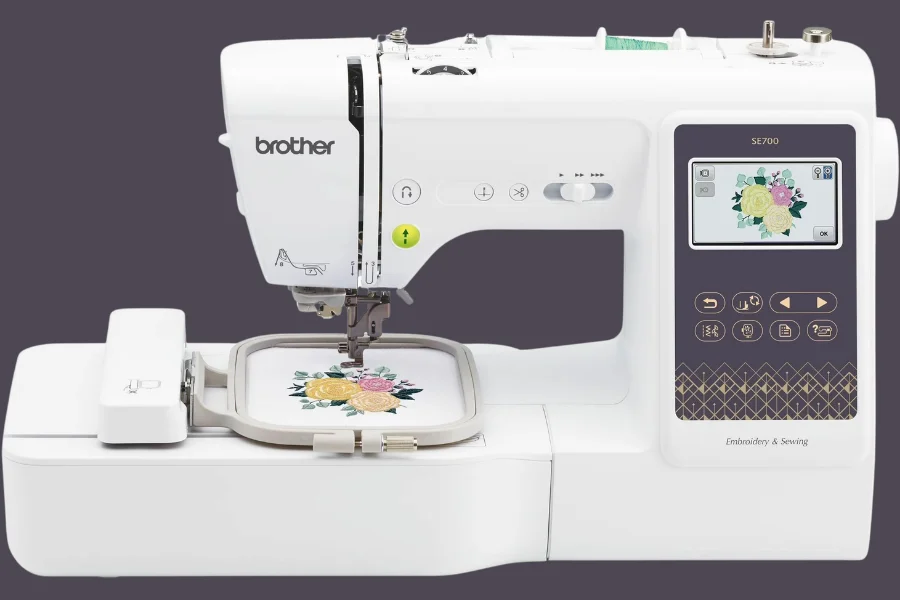
A PES file is an embroidery stitch file widely used by Brother and Baby Lock machines. It stores stitch paths, color changes, and design data the machine needs to sew.
Which Machines Can Read PES?
Many Brother models support PES files. Some can also read DST, PHC, or other formats. However, support varies by model, so check your machine manual and hoop size.
Why Might a PES File Not Show?
A PES file may not appear if:
- The design is too large
- The file uses unsupported data
- The file name has special characters
- The stitch or color count is too high
Because of this, use a simple file name and make sure the design fits your machine limits before transferring it correctly.
Can You Convert JEF to PES Without Redigitizing?
Yes. If the JEF file already stitches well, you may only need to change its format. The design should also fit the hoop size and limits of the Brother or Baby Lock embroidery machine you plan to use.
When Is Simple Conversion Enough?
A clean stitch file can often be saved as PES without rebuilding the design. The stitch path, color changes, and other basic stitch data usually stay in place.
However, editing or redigitizing may be needed when:
- The design is too large for the hoop
- Stitch density is too high or uneven
- The stitch path is messy
- Small lettering does not sew clearly
- The design was resized too much
- The new machine still cannot read the file
Most importantly, format conversion does not create a new stitch plan. It only changes the file into a format the target machine can read.
How to Convert a JEF File to PES?
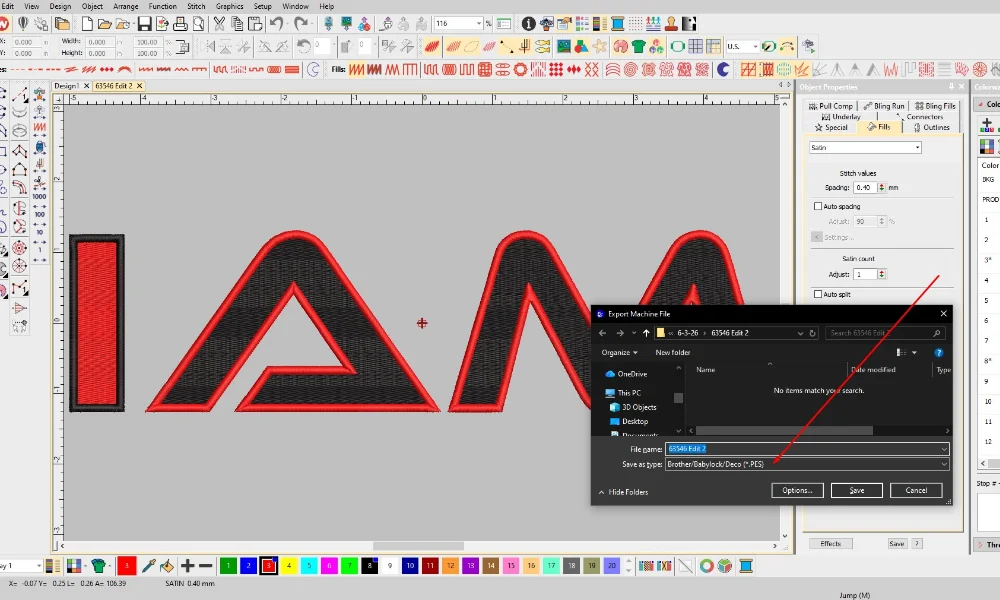
You can change a JEF design to PES with embroidery software or a trusted file converter. However, do not export the file and stitch it right away. A few checks can help prevent hoop and stitch problems.
1. Open and Check the JEF Design
Open the JEF file in software that can read JEF and save or export PES. Before you convert it, preview the design and make sure nothing looks missing.
Check these details:
- Confirm the design size and hoop area.
- Review the stitch count.
- Look for long jump stitches.
- Check trims and color stops.
- Make sure the color order looks correct.
Also, compare the design size with the embroidery area supported by your machine. A valid file can still fail to load if it is larger than the machine allows.
2. Save the Design as a PES File
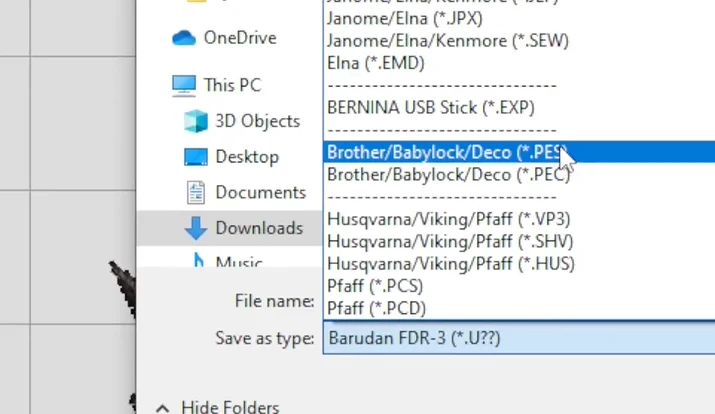
After the design passes your checks, choose PES from the Save As or Export menu. Do not simply rename the JEF extension to PES. That does not convert the embroidery data.
Use a simple file name. Brother recommends using letters, numbers, dashes, and underscores. The machine may not display a file if the name contains special characters.
For example, a name like flower_logo_01 is easier for the machine to read than a name filled with symbols.
3. Transfer and Test the New File
After saving, copy the PES file to a supported USB drive or transfer the embroidery file by the method listed for your machine. Insert the drive, open the embroidery menu, and check that the design appears correctly.
Before stitching, review the size and colors on the machine screen.
Finally, sew a test on fabric and stabilizer similar to your final project. Watch for thread breaks, gaps, heavy areas, or wrong color stops. If problems appear, edit the stitch file before using it on the finished item.
Need a clean PES file for your machine? Send your design to Digitizing Buddy and get it checked, converted, and ready for embroidery.
What Should You Check Before Stitching the PES File?
Before you start stitching, check the converted design on both your computer and machine. A file may open correctly but still have size, color, or stitch problems.
Use This Quick Check
| Check | Why It Matters |
|---|---|
| Hoop size | The design must fit inside your machine’s embroidery area. |
| Stitch count | A very high count may stop some machines from loading the design. |
| Thread colors | Colors may look different after conversion, so review the order. |
| Design size | Heavy resizing can affect stitch spacing and density. |
| Trims and jumps | Poor stitch paths can leave loose threads or a messy back. |
| File name | Special characters may stop the machine from showing the file. |
Also, preview the full design before sewing. Check for dense areas, overlapping stitches, or missing color changes.
Finally, use scrap fabric with the same stabilizer and thread. A short test sew can catch problems before they affect the final garment.
Why Does the Converted PES File Not Open on a Brother Machine?
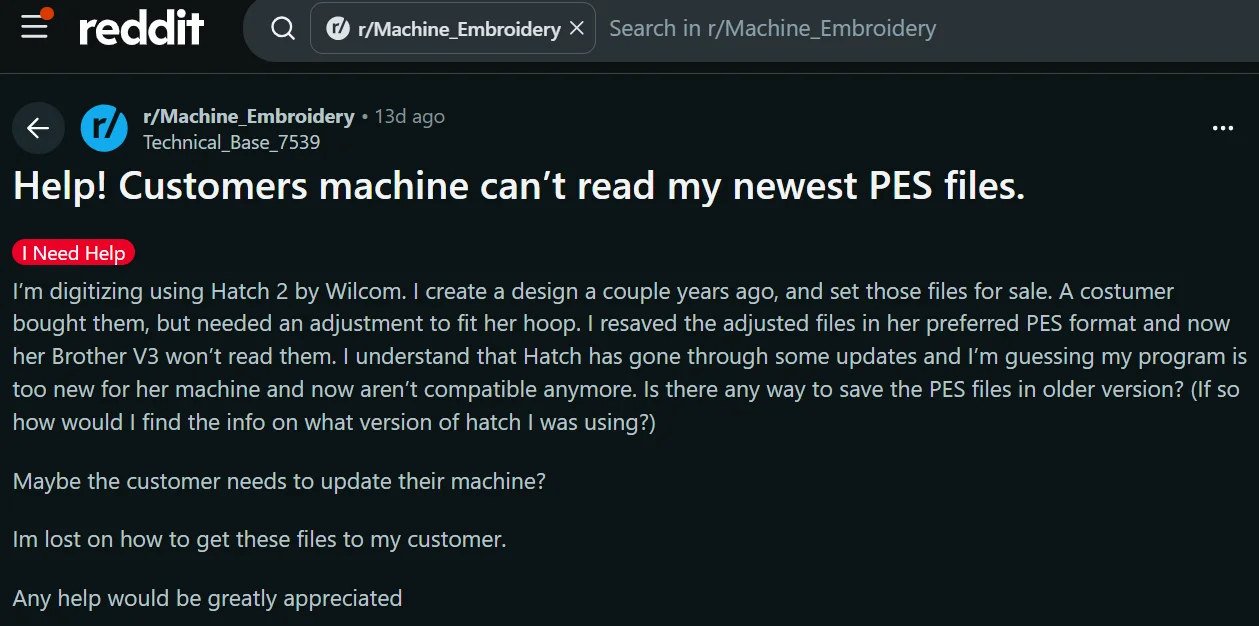
A PES file may fail to appear on a Brother machine. The cause often comes from the file, USB drive, or machine limits.
What Can Stop the File From Showing?
Common causes include:
- The file was saved in the wrong format.
- The design is in a folder the machine cannot read.
- The file name has special characters.
- The design is larger than the hoop area.
- The stitch or color count is too high.
- The USB drive is not supported.
- The file is damaged.
- An older machine may need an earlier PES version.
However, limits differ by Brother model. Some machines require designs in the USB root folder.
Because of this, check your machine manual before converting again. Also try a simple file name, another USB drive, or a PES version that matches your machine.
Is an Online JEF to PES Converter Good Enough?
An online converter may work if the JEF file is already clean and you only need a simple format change. However, it is not a reliable way to convert embroidery files.
What Can an Online Converter Miss?
A basic converter usually does not repair problems such as:
- Poor stitch density
- Weak or missing underlay
- Gaps between stitched areas
- Bad pull compensation
- Messy stitch paths
- Small lettering problems
Because of this, a converted PES file may open on the machine but still sew badly.
Also, avoid major resizing during conversion. Stitch-only files can become too dense or too loose when their size changes too much.
For a clean design, conversion may be enough. For problem files, proper editing or redigitizing is the safer choice.
Why Choose a Professional Digitizer for File Conversion?
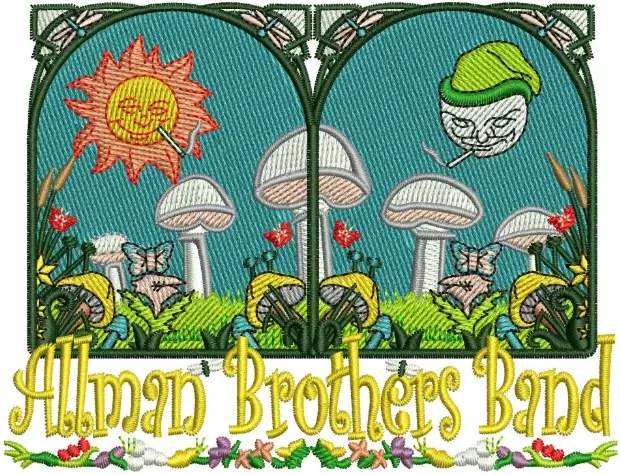
A professional embroidery digitizer can help when you want a more reliable result without trial and error. They can check the file, fix weak areas, and prepare it for the machine, hoop, fabric, and final use.
When Is Professional Help Useful?
Professional support is helpful for:
- Logo files with fine detail
- Small lettering
- Cap embroidery
- Thick or textured fabric
- Custom patches
- Designs that keep breaking thread
- Files that look distorted after conversion
Also, a digitizer can adjust size, stitch paths, density, underlay, and pull compensation when needed. This can improve sew-out quality and reduce common stitching problems.
Because of this, professional conversion is often a better choice when the design needs more than a simple file format change.
Final Thoughts
Changing a JEF design to PES can be simple when the original stitch file is clean and fits your machine limits. However, always check the hoop size, stitch count, color order, file name, and design quality before sewing.
You can change the format with embroidery software or a converter. However, always check the hoop size, stitch count, color order, file name, trims, and design quality before stitching.
Also, remember that file conversion does not fix poor density, weak lettering, bad stitch paths, or resizing problems. A test sew can help you catch these issues before they affect your final item.
For a safer and reliable result, send your design to Digitizing Buddy. Get a free quote and have your file prepared for your machine.
FAQs
Most Brother machines are designed to use PES and certain other supported formats rather than JEF. JEF is mainly used by Janome and Elna machines. However, supported formats vary by model, so always check your Brother machine manual before transferring a design.
No. Changing the file extension does not convert the embroidery data. You need compatible embroidery software or a file converter that can open the JEF design and export it correctly as a PES file.
A simple format change should keep the main stitch instructions. However, conversion will not repair poor density, bad stitch paths, weak lettering, or other problems already in the design. Therefore, preview and test sew the new file before using it on your final item.
The design may be too large, have too many stitches or colors, use an unsupported file name, or exceed your machine limits. Also, some Brother machines may not read certain USB drives. Brother recommends simple file names and supported USB media.
Yes, a converter may work when the original JEF design is already clean and only needs a format change. However, it will not replace proper digitizing or editing when the design has density, sizing, lettering, underlay, or stitch-path problems.