
| Vector art stays sharp at any size and works well for print. Clean files, simple shapes, and the right format improve print quality.
|
Printing clear artwork starts with using the right file type. If your design looks sharp on screen but turns blurry on paper, the problem is often the file, not the artwork itself. That is where vector art makes a big difference. Vector files stay clean, smooth, and easy to resize, which makes them a smart choice for logos, signs, shirts, stickers, and more.
In this guide, you will learn how to create vector art for printing in a simple way. We will explain what makes vector art different from regular image files, which file types matter most, and how to build your design step by step. We will also cover free tools, helpful tips, and common mistakes to avoid.
So, whether you run a small business or enjoy creative projects at home, this guide will help you feel more confident. And if you ever need clean, print ready artwork without the stress, Digitizing Buddy offers reliable vector conversion services to help you get professional results.
- What Makes Vector Art Different From Regular Image Files?
- What Are The Common Vector File Types That Beginners Should Know?
- How to Create Vector Art Step by Step
- Why Do Vector Art Files Work Well for Printing?
- Is It Possible To Create Vector Art For Free?
- What Are Professional Tips For Creating High Quality Vector Art?
- What Are Common Mistakes To Avoid When Creating Vector Art?
- Why Hire Professional Vector Art Services?
- Final Thoughts
What Makes Vector Art Different From Regular Image Files?
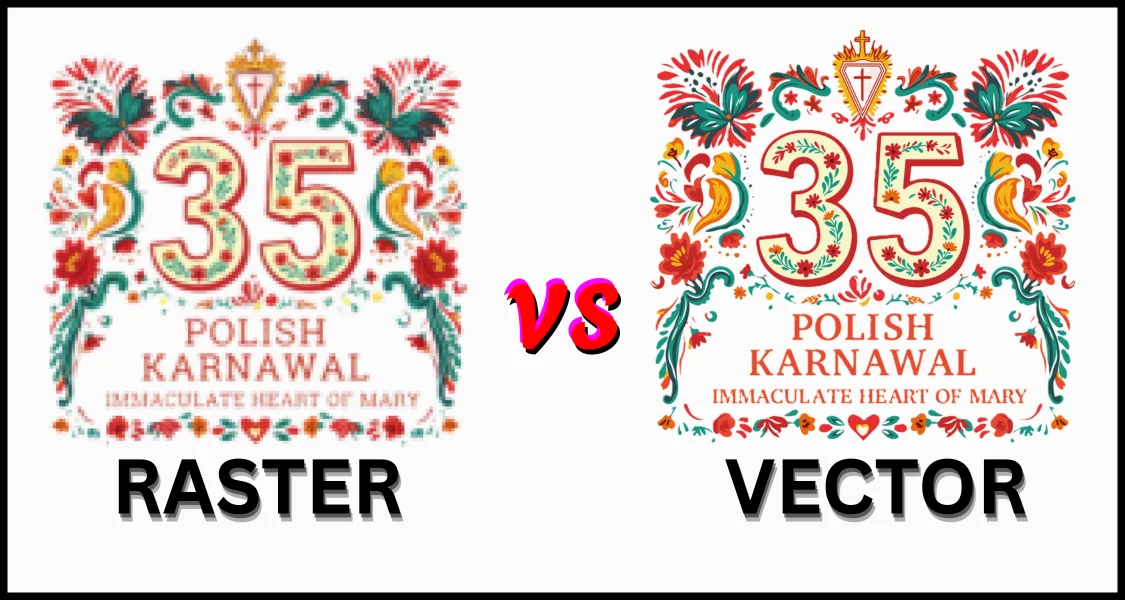
Vector art and regular image files are built in two very different ways. Vector art uses math based paths, lines, curves, and shapes. Files like JPEG, PNG, and BMP are raster images, which means they store pictures on a fixed grid of tiny pixels.
Because of that, vector art stays sharp when you make it bigger or smaller. Raster images do not. When you stretch a raster file too much, the pixels become visible, and the image can look blurry or blocky. On the other hand, vector files are easier to edit when you need to change colors, shapes, or text.
Here is a simple comparison: Raster vs Vector Art
| Feature | Vector art | Regular image files |
|---|---|---|
| Built from | Paths and shapes | Pixels |
| Resize quality | Stays sharp | Can lose quality |
| Best for | Logos, printing | Photos, detailed images |
Best use cases
- Use a vector for logos
- Use a vector for print files
- Use raster for photos
So, if you want a clean logo on a shirt, sign, or cap, vector art is usually the better choice. If you need a photo with rich shading, a raster image works better.
What Are The Common Vector File Types That Beginners Should Know?
Vector designs often come in different file types. One common type is SVG, which is a format used on websites. It’s built using simple code (called XML) that tells the computer how to draw the design, so it can be resized without losing quality. AI is Adobe Illustrator’s native file format, which makes it strong for editing inside Illustrator.
Also, EPS is older, but many print shops still accept it. PDF can hold vector artwork too, so it is often useful for sharing and printing. CDR is CorelDRAW’s main format and is common in some sign, print, and apparel shops.
Quick format guide
- SVG for web graphics
- AI for Illustrator editing
- EPS for broad print support
- PDF for sharing and print proofs
- CDR for CorelDRAW users
How to Create Vector Art Step by Step
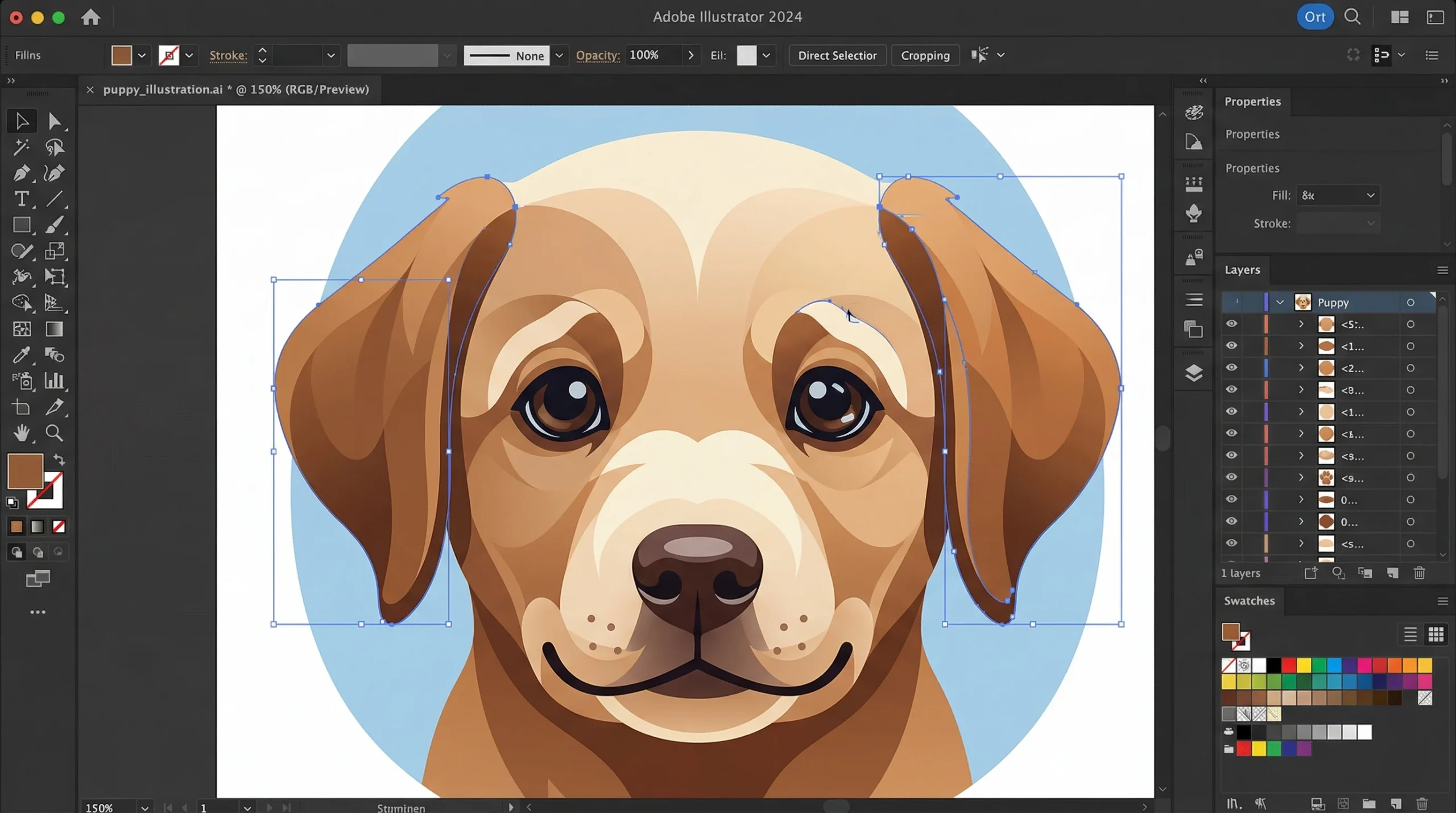
If you want to learn how to create vector art, the best way is to follow a clear step by step process. You do not need to be an artist to start. You only need a simple idea, the right tool, and a clean workflow.
Step 1: Start With a Simple Sketch or Idea
Begin with a rough sketch on paper or on a tablet. Keep your idea simple. Clear shapes are easier to trace and easier to print.
For example, if you want to make a logo, start with the main shape only. Do not add tiny details too early. A simple idea gives you better control.
Step 2: Choose a Vector Design Program
To create vector art more easily, pick a program that fits your skill level and budget. Some tools feel easier for beginners, while others offer more advanced controls.
Software options to know
- Adobe Illustrator for pro level design
- CorelDRAW for print and sign work
- Inkscape for free vector editing
- Canva for very basic graphic work
Here is a quick comparison:
| Program | Best For | Cost Level | Ease of Use |
|---|---|---|---|
| Adobe Illustrator | Professional vector design | Paid | Medium |
| CorelDRAW | Print shops and layout work | Paid | Medium |
| Inkscape | Beginners and budget users | Free | Medium |
| Canva | Very simple design tasks | paid | Easy |
Step 3: Set Up Your Artboard
After that, open a new file and set your artboard size. Use the size that best fits your project, or use a larger workspace if you are still exploring ideas.
Also, leave some empty space around your design. This helps you move objects without crowding the page. A clean layout makes editing easier later.
Step 4: Create Vector with Shapes, Lines, and the Pen Tool
Then build your design from simple pieces. Start with circles, squares, lines, and other basic shapes. Most strong vector art begins with simple forms.
The Pen Tool helps you draw smooth lines and curves. Think of it like placing points on a path. The software connects those points and creates a clean shape.
You can also use the Pathfinder tool to combine or cut shapes. This saves time and helps you build custom artwork with better precision.
Step 5: Trace Your Sketch Carefully
Once your base is ready, trace the main outline of your sketch. Focus on the large shapes first. Do not rush into tiny details.
Then add smaller details one by one. Keep your curves smooth and your lines clean. Too many points can make the artwork look rough and harder to edit.
Step 6: Add Colors
Now fill your shapes with color. Use a small color palette so the design stays clean and easy to read. Simple color choices often print better than busy ones.
Also, make sure your colors have enough contrast. Dark text on a dark background can disappear in print. Good contrast helps your design stay clear.
If your software allows gradients, use them with care. Soft gradients can add depth, but too many effects can make the art feel messy.
Step 7: Add Text the Right Way
If your design includes words, choose a clean font. Make sure the text is easy to read, even from a distance. Fancy fonts may look appealing on screen but fail in print.
Before sending the file to print, convert text to outlines if needed. This turns letters into shapes. It helps prevent font problems if the printer does not have the same typeface.
Step 8: Check Spacing, Alignment, and Shape Quality
At this point, zoom in and inspect the whole design. Look for rough edges, uneven spacing, or shapes that do not line up well.
Also, check the balance. Your artwork should feel centered and clean. Use layers and groups to keep parts organized. This helps a lot when you need to make changes later.
Step 9: Save the Master File of Vector Art
Save an editable master file before you export anything. This is the file you return to when a client wants changes or when you need another size later.
Good file habits matter
- Name layers clearly
- Group related objects
- Keep a clean master copy
- Remove unused shapes and swatches
Step 10: Export the Right Print File
Finally, export the file in the format your printer requests. Common choices include AI, EPS, SVG, and PDF. PDF often works well for sharing. AI (Adobe Illustrator) is common for editing, and EPS (Encapsulated PostScript) is common for print production.
Before you send the file, double check the size, colors, and text outlines. You can also review Adobe’s Illustrator file setup for printing guide to check page size, bleed, and color settings. A quick final review can prevent costly print mistakes.
Key Takeaways
- Start with a simple sketch and keep shapes clear
- Choose a vector tool like Illustrator, Inkscape, CorelDRAW, or Canva
- Build the design with shapes, lines, and the Pen Tool
- Add clean colors, readable text, and check spacing carefully
- Save an editable master file and export the right print format
This step-by-step method helps you create cleaner vector art with less stress. If you want expert help with print ready files, Digitizing Buddy can help turn your idea into polished vector artwork.
Why Do Vector Art Files Work Well for Printing?
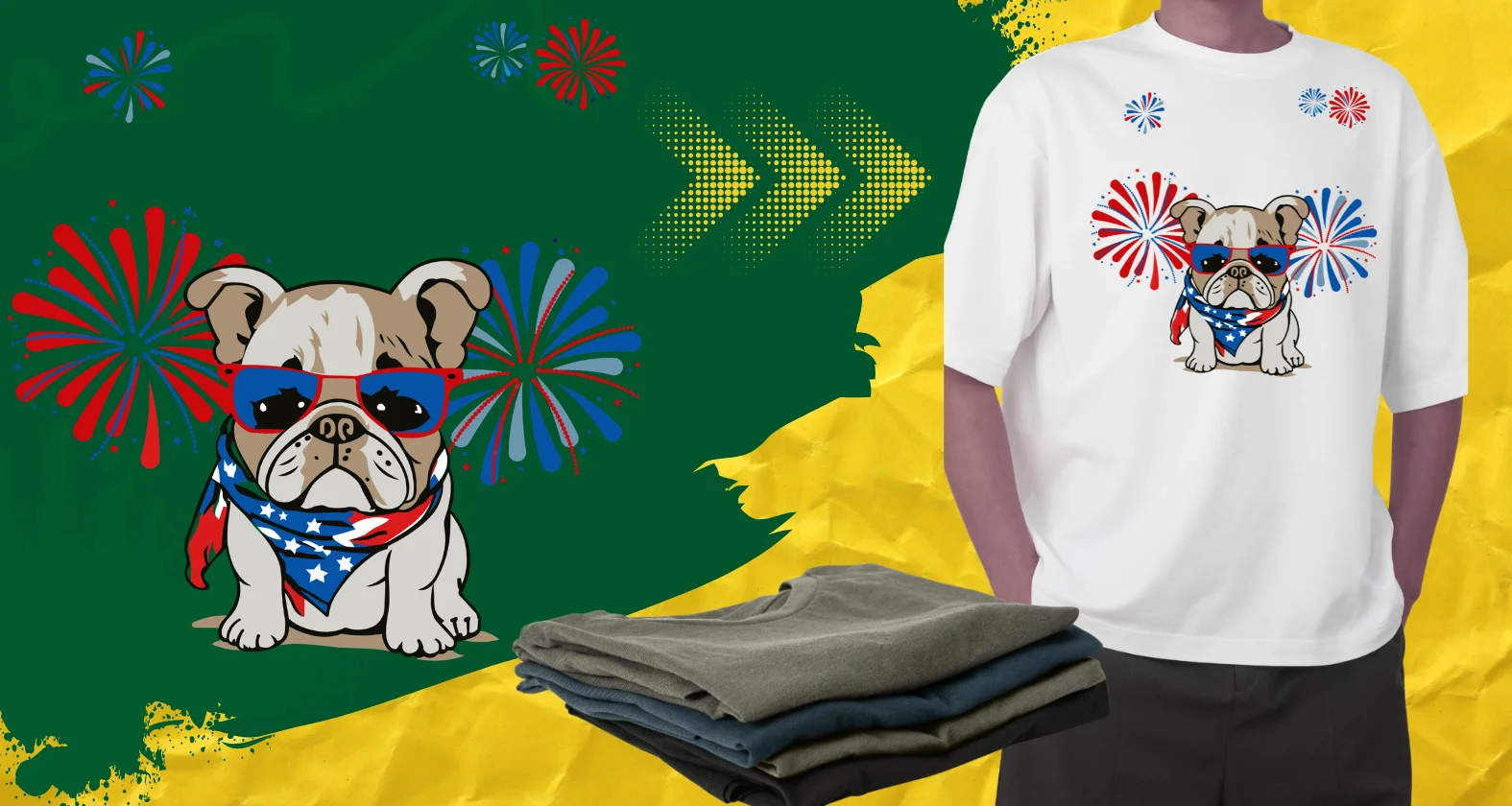
Vector files work well for printing because they stay sharp at any size. A printer reads the paths and shapes, then draws them with clean edges. So, a logo can look clear on a business card and still look crisp on a large poster.
Also, vector files keep colors and shapes neat. This matters for logos, labels, signs, and other brand graphics. Clean lines help the final print look more professional and more polished.
Moreover, printers and designers like vector files because they are easier to edit. If you need to change a color, fix text, or resize the design, the file still holds its quality.
Best print uses
- Billboards
- business cards
- packaging
- Apparel
- posters
| Feature | Print Benefit |
|---|---|
| Scalable shapes | stays sharp at any size |
| Clean edges | Looks neat and professional |
| Easy editing | supports fast print changes |
This helps keep the brand’s look consistent everywhere.
Is It Possible To Create Vector Art For Free?
Yes. You can create vector art for free if you choose the right tool. Inkscape is the best free starting point for most beginners. It is open source, uses SVG, and has stable downloads for Windows, Mac, and Linux. Vector also lets users create and edit vector images online. Boxy SVG is strong for SVG work, but its web app uses paid plans, so it is not the best fully free choice.
Good budget friendly options
- Inkscape for full free editing
- Vectr for simple browser based work
- Boxy SVG for advanced SVG focused tasks
| Tool | Best use | Cost note |
|---|---|---|
| Inkscape | logos and print art | free |
| Vectr | simple online design | limited free use |
| Boxy SVG | SVG editing | paid web plans |
However, free tools do have limits. Paid apps often give faster workflow, better file handling, and stronger team features. So, start with Inkscape, follow its help guides, and upgrade only when your work grows.
What Are Professional Tips For Creating High Quality Vector Art?
Keep Your Design Simple
Simple designs often print better. Small details can get lost on paper, fabric, or vinyl. Clean shapes also make your artwork easier to scale and edit.
Use Clean Curves and Fewer Points
Try to use fewer anchor points when drawing curves. This helps lines look smooth and natural. Too many points can make shapes look rough and messy.
Design Vector Art With Printing in Mind
Always think about the final print size. Thin lines may disappear. Small text may become challenging to read. Fine details may not show well on every surface.
Work in the Right Color Mode
RGB works best for screens. CMYK is often better for printing. If your design is meant for print, check the color mode before you export the file.
Helpful habits to follow
- Keep shapes clean
- Use fewer points
- Check text size
- Save more than one version
- Keep one editable file
Test Your Design at Real Size
Print a sample if you can. This helps you see if the text, spacing, and details still look clear. A test print can save time and money.
Organize Your Layers and Files
Name your layers clearly. Group related parts together. Save both an editable master file and a print file.
| Tip | Why it helps |
|---|---|
| Simple design | Prints more clearly |
| Fewer points | Makes curves smoother |
| Real size test | Shows print issues early |
| Clean file setup | Makes editing easier |
What Are Common Mistakes To Avoid When Creating Vector Art?
Many people start with a low quality image for tracing. That often creates rough edges and messy shapes. So, use the clearest image you can find to save time later.
Also, avoid adding too much detail. Small lines, tiny text, and busy shapes may not print clearly. A simple design usually looks cleaner and more professional.
Another common mistake is leaving extra anchor points and messy paths. This issue makes curves look uneven and harder to edit. Keep paths smooth and clean.
Mistakes that hurt print quality
- Using blurry images for tracing
- Skipping font outlines
- Exporting the wrong file type
- Ignoring color settings
- Not checking the final size
| Mistake | Better approach |
|---|---|
| Low quality tracing image | start with a sharp image |
| Too much detail | keep shapes simple |
| Wrong file type | check printer needs |
| Screen color only | test colors before printing |
Finally, always check size, colors, layers, and file format before export. Small fixes early lead to cleaner artwork and better printing results.
Why Hire Professional Vector Art Services?
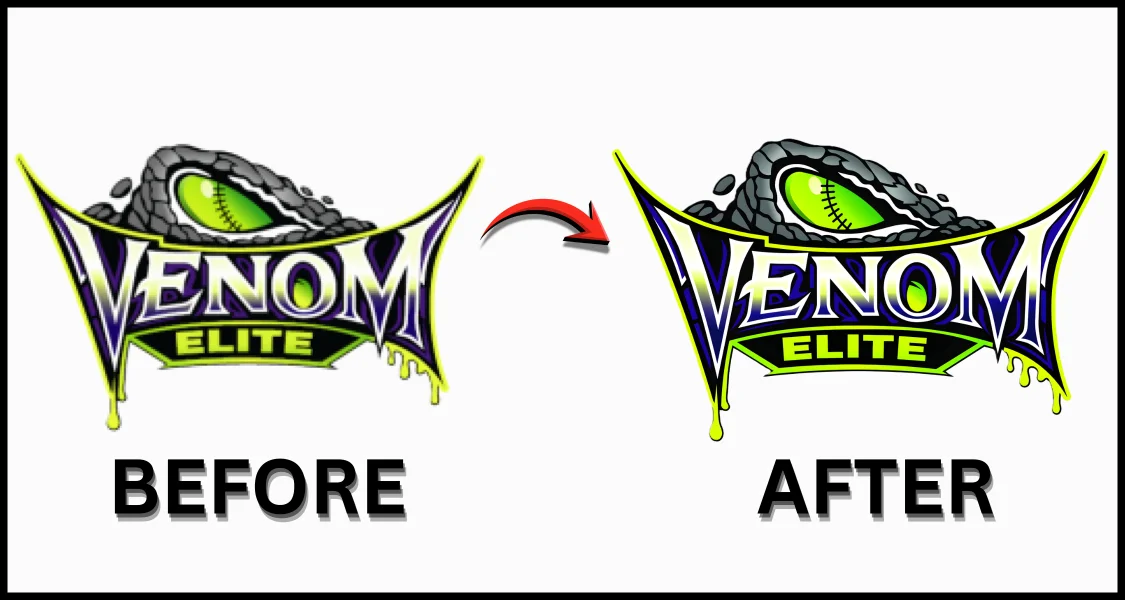
Vector software can cost a lot. Good tools also take time to learn. For many small business owners and hobbyists, that means spending more money and losing more hours.
Even with the right software, results are not always clean. Tracing art takes skill, patience, and practice. One small mistake can lead to rough edges, poor shapes, or files that do not print well.
That is why professional vector art services help. They give you clean, scalable files that work for print, web, signs, apparel, and branding. As a result, you save time and avoid trial and error.
Meanwhile, you can focus on work that grows your business. You can serve customers, ship orders, or build your brand while experts handle the artwork.
Why businesses choose pros
- Save money on costly software
- Skip the long learning curve
- Faster turnaround for urgent projects
- Clean, accurate files for print and web
- Better results across all sizes
- Less trial and error for your team
- Free up time for more productive work
| DIY vector work | Professional service |
|---|---|
| Takes time to learn | Ready expertise |
| Results may vary | Reliable quality |
| More edits later | Fewer corrections |
| Hidden labor costs | Better value over time |
So, hiring experts gives you peace of mind, saves resources, and delivers dependable results.
Final Thoughts
Vector art helps your artwork stay clean, sharp, and ready for print. When you use simple shapes, the right file type, clean colors, and proper sizing, your final design looks more professional and works better across different printed products.
With practice, anyone can learn how to create vector art and improve over time. Start with simple designs, build your skills step by step, and stay focused on clean results. At the same time, important business artwork often needs extra care, and professional help can save time while helping you avoid costly print mistakes.
If you need clean, dependable results, contact Digitizing Buddy for reliable vector tracing solutions.
Frequently Asked Questions
Why is vector art better for printing?
Vector artwork works well for printing because it is resolution-independent. Printers can reproduce the shapes cleanly at many sizes, so the same design can stay crisp on a business card, shirt, poster, or sign.
Which file types are best for vector printing?
The most common vector formats for print are AI, EPS, SVG, and PDF. However, a PDF is only a container, so it can hold vector content, raster content, or both.
Can I turn a JPG or PNG into a true vector file?
Yes, but only if you trace or rebuild it as vector paths. Simply saving a JPG or PNG as SVG, EPS, or PDF does not magically convert the pixels into true vector shapes. Auto trace works best on simple, high contrast artwork, not detailed photos.
Is PDF always a vector file?
No. A PDF can contain vector graphics, raster images, text, or a mix of all three. So, a PDF is not automatically a true vector file just because the extension says PDF.