
| Summary |
|---|
The right vector design software depends on skill, budget, and final use.
|
Vector graphics software helps you create clean logos, icons, signs, labels, and artwork that stay sharp at any size. It works better than regular image tools because it uses lines, shapes, and paths instead of pixels.
However, choosing the right software can feel confusing. Some programs work best for beginners. Others fit professional designers who need advanced control, file formats, and print-ready results.
Also, software alone does not always fix blurry logos or low-quality images. Auto-tracing can leave rough edges, extra points, and uneven curves.
That is why many businesses choose expert help. Digitizing Buddy provides the best vector conversion services to turn your artwork into clean, scalable vector files, so your design looks sharp on shirts, signs, packaging, websites, and more.
- What Key Features Should You Look for in Vector Graphics Software?
- Which Software Options Are Best for Beginners Getting Started with Vector Design?
- What Are the Best Software Choices for Professional Vector Designers?
- Free vs Paid Vector Graphics Software: Which One Is Better?
- Can Artificial Intelligence Be Used to Vectorize an Image?
- Why Hire Professional Vector Conversion Services?
- Final Thoughts
- FAQs
What Key Features Should You Look for in Vector Graphics Software?
A good design tool should feel easy to use, even if you are new. It should also give pros enough control to create clean, sharp artwork.
Easy Drawing and Editing Tools
Look for tools that help you draw shapes, lines, curves, and smooth edges. These features help beginners make simple designs and help pros fix rough logos faster.
Helpful tools include:
- Pen tool
- Shape tools
- Curve editing
- Layer control
- Alignment options
File Format Support
A strong program should open and save common file types. SVG works well for web graphics because it stays sharp at different sizes. AI, EPS, PDF, and DXF are also useful for print, signs, and vendor work. Adobe lists formats like AI, PDF, EPS, SVG, DXF, PNG, and JPG in Illustrator workflows.
Image Tracing Tools
Image tracing can turn a JPG or PNG into editable artwork. However, auto-tracing can create rough edges, too many points, and uneven curves. Manual cleanup often gives better results.
Text and Font Control
Good text tools help you adjust names, slogans, spacing, and font outlines. This matters for logos, labels, and business artwork.
Print and Export Settings
Finally, check export quality, color options, transparent backgrounds, and software integration. These features help you prepare clean files for websites, shirts, signs, packaging, and print shops.
Which Software Options Are Best for Beginners Getting Started with Vector Design?
Beginners need tools that feel simple, affordable, and easy to practice with. The best choice depends on your project, budget, and comfort level.
Inkscape: Best Free Tool for Learning
Inkscape is a strong choice for beginners because it is free and open-source. It works well for logos, icons, line art, diagrams, and simple SVG edits. It gives new users real design tools without a monthly cost.
However, it can feel a little crowded at first. Start with basic shapes, text, and simple tracing before using advanced tools.
Vectr: Best for Simple Online Edits
Vectr works well for quick edits because it runs online. You can create and edit vector images, logos, icons, and presentations in your browser. It also offers JPG to SVG conversion.
However, it is better for simple work than detailed business artwork.
Boxy SVG: Best for SVG File Editing
Boxy SVG focuses on SVG files. It is useful for website graphics, icons, and clean digital artwork. It offers a 15-day free trial, then a low yearly price.
This tool fits users who mostly need SVG editing.
Canva: Best for Fast Business Graphics
Canva helps small business owners make quick designs and convert JPG or PNG images into SVG files.
However, complex logos may still need expert cleanup.
Helpful starting tips:
- Practice with simple shapes.
- Save files in SVG format.
- Watch built-in tutorials.
- Test exports before printing.
- Use professional help for the final business files.
What Are the Best Software Choices for Professional Vector Designers?
Professional designers need more control than beginners. They work with logos, print files, signs, packaging, and detailed brand art. So, they choose tools that offer clean paths, strong export settings, and wide file support.
Adobe Illustrator: Best for Advanced Logo and Brand Design
Adobe Illustrator works well for logos, icons, type design, and complex brand artwork. It offers strong tools for shapes, curves, colors, and clean scaling. Adobe also updates Illustrator with AI tools, including Text to Vector Graphic for editable design ideas.
Best uses:
- Logo design
- Brand artwork
- Icons
- Packaging
- Detailed illustrations
Designers often choose it because it gives strong control over small details.
CorelDRAW: Best for Print Shops, Signs, and Apparel Graphics
CorelDRAW fits print shops, sign makers, and apparel artwork teams. It supports vector illustration, page layout, photo editing, and typography in one suite. CorelDRAW Graphics Suite 2026 is available for Windows and Mac.
Best uses:
- Signs
- Banners
- T-shirt artwork
- Print layouts
- Large format designs
Also, many production teams like it because it handles layout and vector work together.
Affinity: Best Professional Option Without a High Cost
Affinity gives users pro design, photo, and layout tools in one app. Its official site now presents it as free professional creative software.
Best uses:
- Freelance design
- Business graphics
- Logo cleanup
- Print artwork
- Budget-friendly pro work
However, users may still need practice to prepare perfect vendor-ready files.
Figma: Best for Web, UI, and Team Design
Figma works best for digital teams. It helps designers create web graphics, app icons, interface layouts, and shared design systems. Its vector networks also help users build detailed icons and custom shapes.
Best uses:
- Web design
- App icons
- UI layouts
- Team projects
- Digital graphics
Overall, pros pick the tool that fits the job. For clean print-ready files, skill matters as much as the software.
If you want sharp artwork without learning complex tools, Digitizing Buddy can help. Our team converts logos, sketches, and low-quality images into clean vector files for business use.
Free vs Paid Vector Graphics Software: Which One Is Better?
Free tools work well when you want to learn, test ideas, or make simple SVG edits. Inkscape is a good example because it is free and open-source. It works for logos, icons, diagrams, and web graphics.
When Free Tools Make Sense
Choose free tools when you need:
- Basic logo edits
- Simple SVG files
- Hobby designs
- Practice projects
- Low-cost learning
However, free tools may take more time to learn. They may also need extra setup for print files.
When Paid Tools Make Sense
Paid tools fit users who need faster work and more control. Adobe Illustrator uses paid monthly or yearly plans, with a free trial option. CorelDRAW also offers subscription and one-time purchase options.
Choose paid tools when you need:
- Advanced editing
- Better file control
- Vendor-ready exports
- Strong support
- Faster workflow
Quick Comparison Table
| Option | Best For | Main Benefit | Main Limit |
|---|---|---|---|
| Free tools | Beginners | No cost | More learning time |
| Paid tools | Professionals | Better control | Higher cost |
| Online tools | Quick edits | Easy access | Limited features |
| Expert service | Business files | Clean results | Finding the best one |
Overall, free tools are great for learning. Paid tools help with serious design work. But for clean logos, signs, shirts, labels, and packaging, professional vector art services often give the safest final result.
Can Artificial Intelligence Be Used to Vectorize an Image?
Yes, AI can help turn a JPG, PNG, or sketch into vector artwork. It studies the image, finds shapes and edges, and then creates paths that users can resize and edit.
How AI Vector Tools Work
Some modern tools now support AI-based vector creation. Adobe Illustrator can create editable vector graphics from text prompts. Figma also offers a Vectorize feature that turns static images into vector layers. Canva can convert JPG and PNG files into SVG format.
Where AI Helps
AI works best for:
- Simple icons
- Basic shapes
- Rough drafts
- Quick design ideas
- Clean images with clear edges
Where Manual Cleanup Still Matters
However, AI is not perfect. It may create extra points, rough curves, broken lines, or weak text details.
For logos, signs, shirts, labels, and packaging, manual cleanup often gives a cleaner final file. That is why professional vector conversion is still the safer choice for business artwork.
A Reddit User Shared a Common AI Vector Problem
Anyone else hit a wall using AI image generation in real products?
https://www.reddit.com/r/webdev/comments/1qruzno/anyone_else_hit_a_wall_using_ai_image_generation/
I’ve had pretty good results generating images with AI on their own (DALL·E, Midjourney, etc.), but once I try to actually use those images in a real product or workflow, everything seems to fall apart.
The problem for me isn’t image quality so much as control and repeatability. For example, if I want to tweak a logo by changing a single color, or get a clean vector version, it turns into way more work than it should be. Regenerating often changes things I didn’t want changed, and even small edits usually mean starting over.
I keep running into this gap between “cool generated image” and “something I can reliably use alongside data, layouts, or existing assets.” The lack of determinism is super frustrating.
Curious if others have hit this too. Are there workflows or tools you’ve found that make AI-generated images usable in real products, not just one-off outputs?
This real user concern shows a common problem with AI-generated artwork. AI can create great images fast, but it often struggles with control, repeatable edits, clean vector output, and brand accuracy. For real products, small changes like fixing one color, cleaning a logo, or preparing a vector file may still need manual work from an expert.
Why Hire Professional Vector Conversion Services?
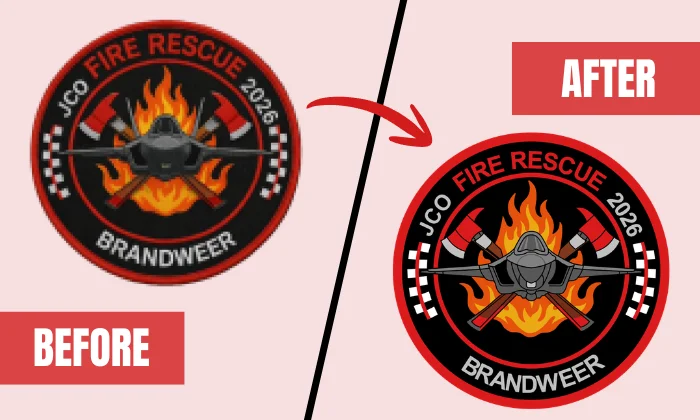
Vector tools can help, but they still need expert skill to create professional results. A program may auto-trace an image quickly, but it does not always understand clean curves, sharp corners, balanced shapes, or print-ready quality. Without the right experience, the final file can still look rough or cause production issues.
Learning Takes Time
Vector tools also require time to learn. You may need hours to learn paths, layers, file types, and export settings. Paid tools can also add extra cost.
Instead of spending time fixing artwork, businesses can focus on sales, orders, customers, and growth. A professional vector artist can review the file, redraw weak areas, clean the paths, and prepare the right format.
Outsourcing Supports Business Growth
Clean artwork helps businesses look more professional. It also makes printing, branding, packaging, and marketing easier.
When business owners outsource vector art, they save time and avoid file mistakes. As a result, they can focus more on finding customers, improving products, and growing their brand.
For clean, print-ready vector art, outsourcing is often the smarter and more productive choice.
Final Thoughts
The best vector design tool depends on your skill, budget, and project needs. Free tools work well for learning, simple edits, and hobby designs. Paid software offers more control for logos, print files, signs, apparel, and business artwork.
However, software still needs expert skill. Auto-tracing can leave rough edges, extra points, and messy paths. For clean, scalable, and production-ready files, manual cleanup often gives better results.
If you want sharp artwork without spending hours learning complex tools, contact Digitizing Buddy for expert vector art services and get a free quote today.
FAQs
Inkscape is a strong free option for beginners. It offers real editing tools for logos, icons, shapes, and SVG files. However, new users may need time to learn paths, layers, and export settings. Inkscape is open-source and built around SVG editing.
Yes, AI can help convert images into vector-style artwork. Adobe Illustrator, Figma, and Canva now offer tools that support AI or image-to-vector workflows. However, AI results still need manual corrections before print or production use.
This often happens because auto-tracing adds too many points, uneven curves, or broken shapes. Extra vector points can make paths rougher and affect file performance.
SVG works well for websites because it stays sharp when resized. It is useful for logos, icons, buttons, and simple web graphics. For print vendors, you may also need EPS, PDF, AI, or CDR files.
Use software for learning, drafts, and simple edits. Hire a professional service when your logo is blurry, low-resolution, or needed for real production. Research on image vectorization also shows that automatic methods are not always universal, so human control is still important for better results.